

Claude Is Escaping the Terminal
Claude Isn’t Just for Coding Anymore

Friends, I’m back with another one. This time, I want to share how my usage of Claude has changed.
For a while, Claude felt most useful when I was close to the code. I would use it to understand a strange error, review a function, think through an implementation, generate tests, or make sense of a codebase I had not touched before. Claude Code made that feel more natural. Instead of treating Claude like a separate chat window where I had to copy and paste pieces of context, it brought Claude closer to the places where development actually happens, such as the terminal, the repository, the files, and the commands I already use every day.
But recently, I’ve started paying attention to a change.
Claude is no longer only moving closer to the codebase but also to the rest of the developer workday and that is where things get more interesting.
When you look at a normal day as a developer, coding is only one part of the job.
You might start with a ticket in Jira or Linear, then check Slack to understand what changed, open a design in Figma, search for an old architecture note in Google Drive or Notion, review a pull request in GitHub, read an email thread, prepare for a meeting, update a document, or analyze a spreadsheet someone shared with the team.
By the time you start writing code, you may have already moved through five or six different tools to understand what needs to be done. That is the part of software work that people do not talk about enough.
A lot of development time is spent collecting context.
What is the real requirement?
Where is the latest design?
Why did we choose this approach?
What changed since the last discussion?
Which ticket explains this bug?
What did I miss in Slack?
What needs to be clarified before I start building?
These are ordinary questions, but they quietly consume a lot of time.
They also explain how beneficial it can be to have Claude into daily work tools. Instead of only asking ‘Can Claude help me code faster?’, we can start asking, ‘Can Claude help me understand the work around the code?’
That is what I want to explore in this piece and how you can get most out of Claude.
Review the actual change, not the file list.
AI writes more code than ever. Reviewing it shouldn’t mean scrolling forty files in alphabetical order.
CodeRabbit Review reorganizes any pull request from a flat file list into a structured, layer-by-layer walkthrough - the logical reading order of the change, not the order your platform happens to sort it. Every range gets its own plain-language summary, with sequence diagrams, state machines, and ERDs generated inline wherever a visual earns its place.
Cohorts group related files and chunks so you review one idea at a time. Layers order them so foundational changes - data shapes, contracts - come before the code that depends on them. Code Peek lets you click any variable, function, class or type to see its definition and usages without leaving the tab, while Semantic Diff view cuts past formatting noise to show what actually changed.
Open it straight from the Review Change Stack button in the PR Walkthrough. Navigate cohorts and layers from the keyboard, comment against exact line ranges and submit native reviews, comments and approvals post back to GitHub or GitLab right where your team expects them.
In the early access, available for free to everyone.
From the team that pioneered AI code reviews. 2M reviews every week. 6M repos. 15K customers.The review interface built for the way modern PRs are actually written.
(Thanks, CodeRabbit team for partnering on this post.)
Developer Workday Is Really a Context Problem
The more I use Claude more I realize that a large part of software development is understanding enough context and passing this context to AI agents to write the right code. That context rarely lives in one place. It is often spread across tickets, pull requests, docs, Slack threads, design files, spreadsheets, meeting notes and decisions that do not get properly documented.
That is why a task that looks simple can easily take longer than you expect.
A ticket might explain what needs to change but not why it matters.
A design file might show the final screen but omit edge cases.
A Slack thread might contain the real reasoning behind a decision but it’s buried somewhere in a long back-and-forth conversation.
So before you even open your editor, you’re already doing detective work.
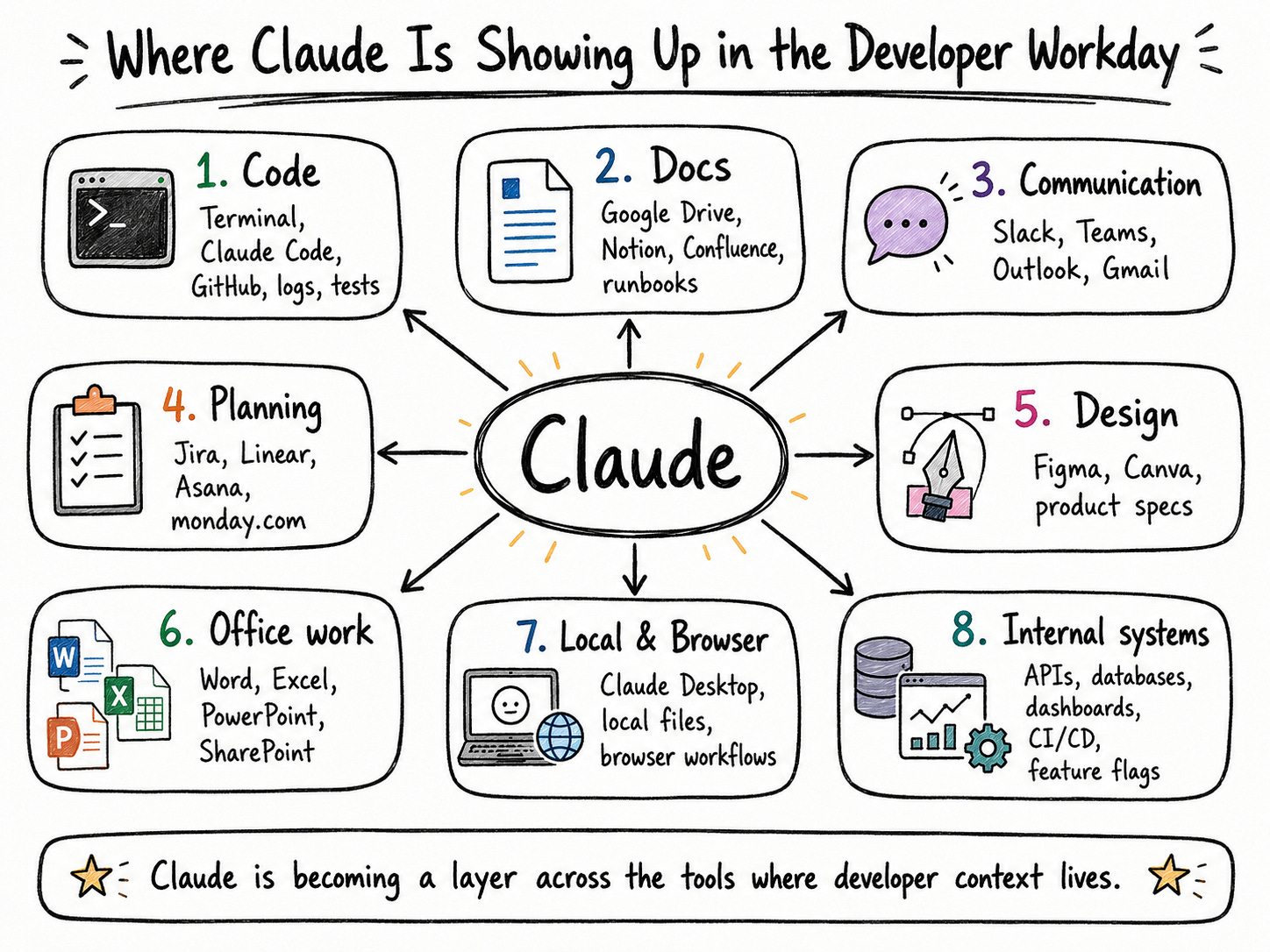
This is the hidden part of the developer workday.
GitHub may tell you what changed in the code.
Jira or Linear may tell you what the team planned.
Slack or Teams may tell you what people actually agreed on.
Figma may show what the user experience should look like.
Google Drive, Notion, Confluence, Word, SharePoint, runbooks, architecture notes and old product specs may contain the rationale for the work.
When that information is scattered, you become the integration layer.
You’ll be the one connecting ticket to design, design to code, code to docs and docs to whatever decision was made in a meeting three weeks ago and this can be exhausting. If Claude can access places where context lives, it can reduce time spent manually collecting and stitching information together.
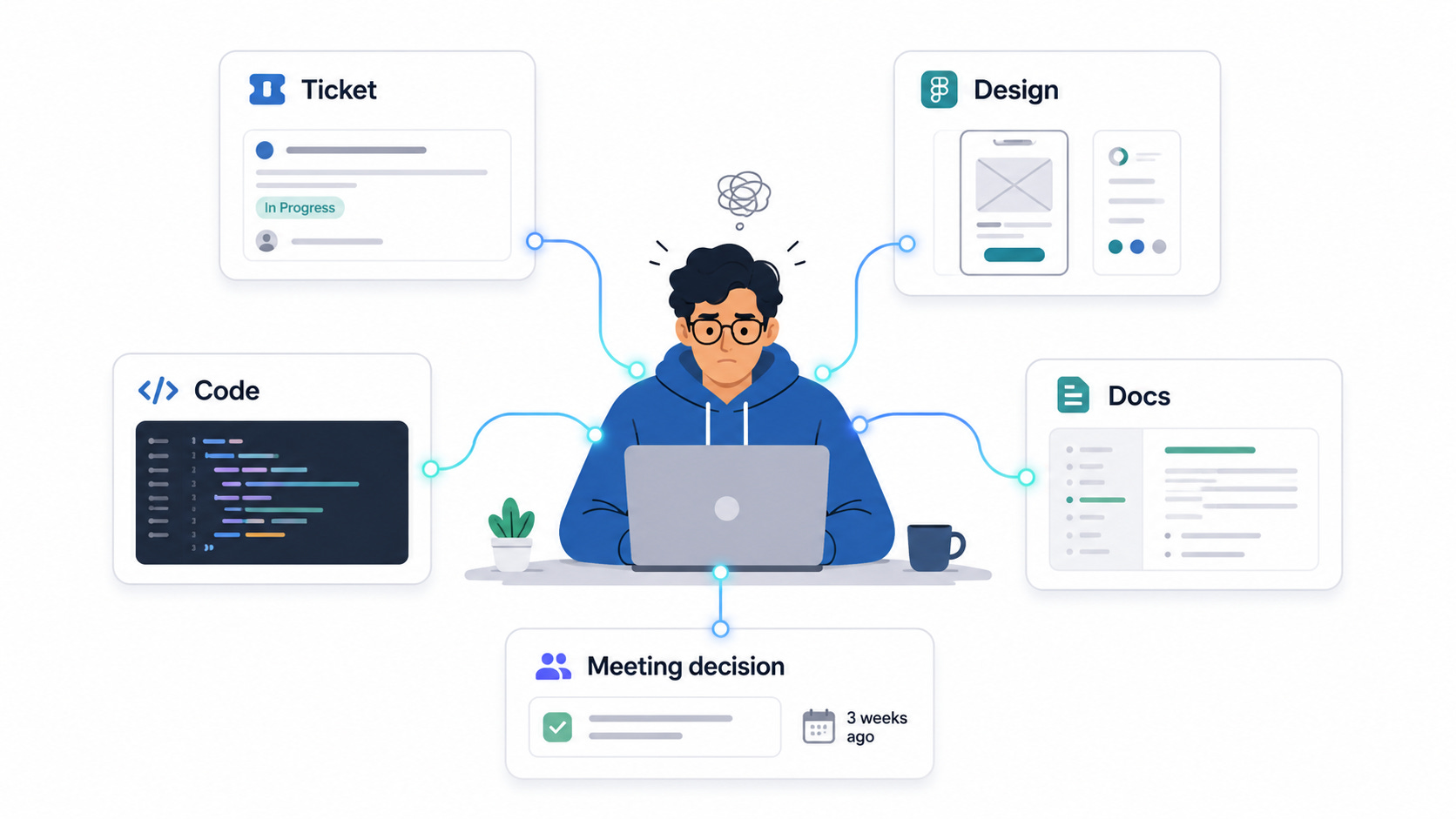
Instead of opening five tools to understand one task, you can then ask:
What changed in this requirement, what does the design expect, and what parts of the codebase are likely affected?
But that does not remove developer from the process.
You still need to verify the answer.
You still need to understand the system well enough to make the final call.
However, Claude changes the starting point. Instead of beginning with scattered information, you begin with a more organized picture of the work in front of you.
Claude Work Surface Map
To make this practical, I find it useful to stop thinking of Claude as a single tool. It is better to think about the work surfaces where Claude can now show up.
For developers, those surfaces go beyond the terminal and IDE. They include the tools used to plan, discuss, document, review, present, test, and hand off work.
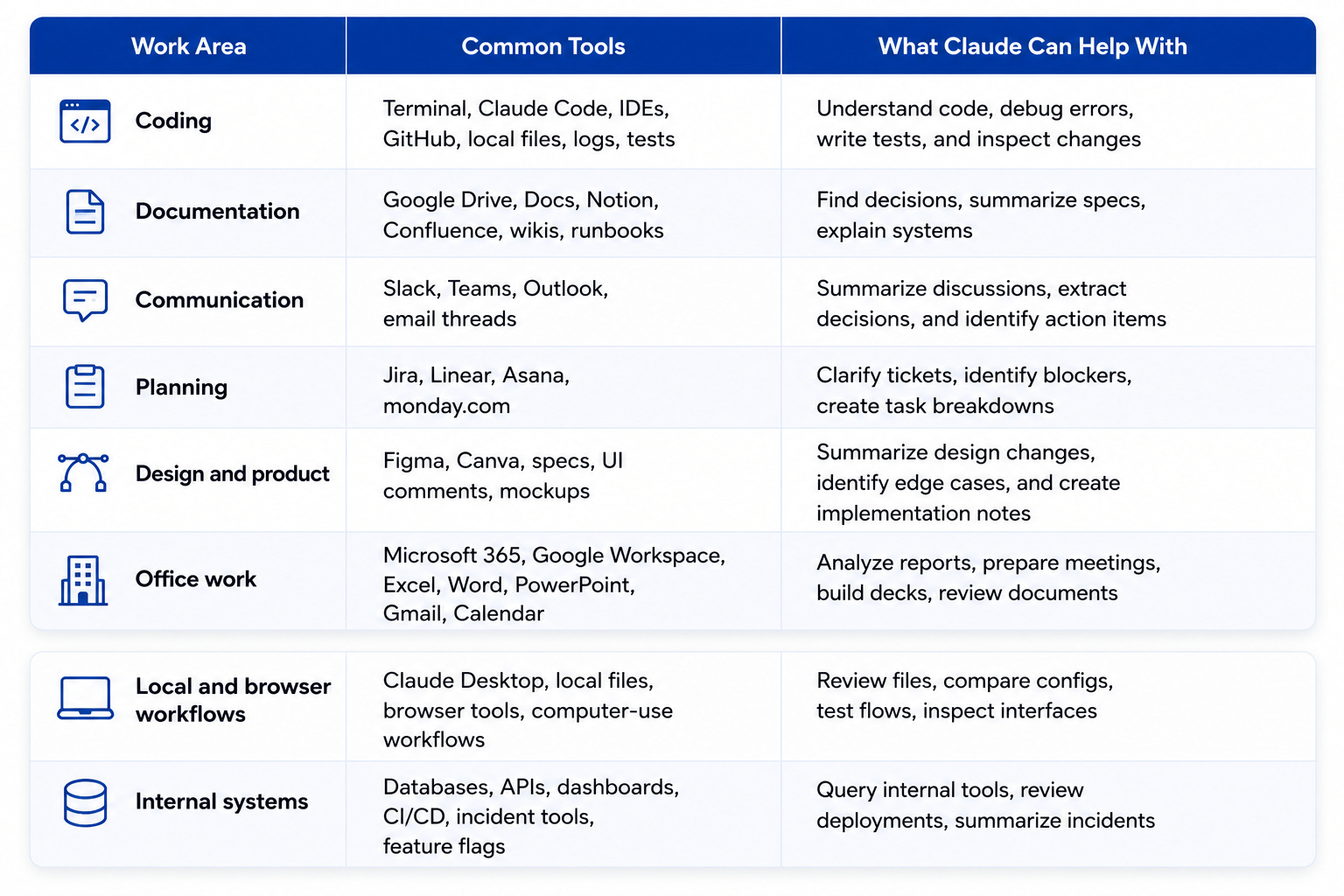
This table represents how I now frame Claude’s role. If you only look at the coding surface, Claude looks like a coding assistant. Once you include docs, chat, planning tools, office files, browser workflows, and internal systems, Claude starts to look broader. It becomes a way to move through the work around the code.
Knowledge and Documentation Surfaces Where Team Memory Lives
Documentation is one of the most important surfaces for developers because so much team knowledge already lives there.
The problem is not always that documentation is missing. Many times, answer exists somewhere, but somewhere could mean Google Drive, Notion, Confluence, an internal wiki, a runbook, an onboarding doc, a product spec, or an old architecture note shared months ago in a Slack thread.
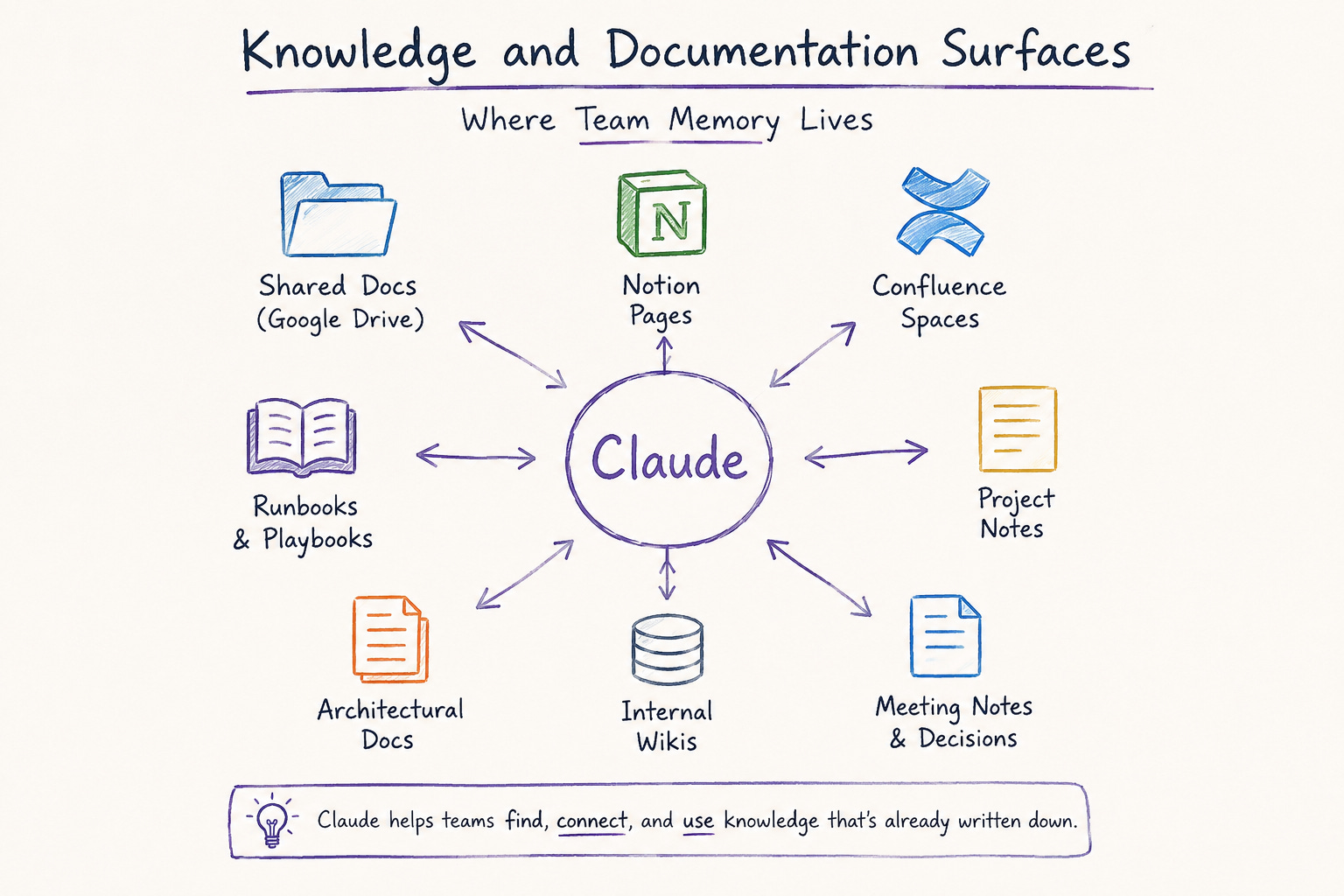
That is where Claude becomes useful in a practical way. If it can connect to the places where documentation lives, it can help answer the questions developers ask every day:
Where is this documented?
What did we decide about this service?
How does this system work?
What changed in the new requirement?
What should I read before touching this module?
You can ask Claude to: ‘Find the latest documentation related to the notification service. Summarize how it works, list known limitations, and point me to sections I should checkout before making any changes.’
That is much better than juggling through folders and guessing which document is still up to date. This also eases onboarding new developers.
A new developer not only needs access to the codebase. They need to understand the system history, deployment flow, incident process, architecture decisions, and the parts of the system that require extra care. Claude can become a first stop for those questions.
But there is an important catch. Claude cannot use knowledge that was never written down. If the docs are outdated, Claude may summarize outdated thinking. If a decision only exists in someone’s memory, Claude will not magically recover it.
Good documentation becomes even more valuable. A runbook, product spec, architecture note, or onboarding guide is not just another page sitting in Confluence or Google Drive. It becomes part of the context that the team can actually use. Claude can help pull out the right details, connect them to the task at hand, and make it easier to understand why something was done a certain way.
Communication Surfaces - Where Decisions Actually Happen
More often than not, we’d like to think that important decisions live in tickets, documentation, or architecture records. But just as often, the real decision can happen in a Slack thread nobody archived, a Teams back-and-forth between two engineers, an email chain that got forwarded three times, or a support ticket that started with one frustrated customer and quietly turned into a full technical investigation.
That is why tools like Outlook, Slack, Microsoft Teams, and Gmail remain useful in the developer’s workday. These tools are not just places where people communicate, they are where requirements change, blockers appear, tradeoffs are discussed, and priorities shift.
The problem is that conversations move fast. A useful decision can be buried between status updates, side comments, reactions, and follow-up questions. By the time you return to the thread, you may remember that something important was discussed, but not exactly what was decided. This is where Claude becomes practical.
For example, suppose you have a presentation about the Q4 roadmap. The information you need to prepare may be spread across Slack updates, project timelines, resource planning notes, and risk discussions. Instead of manually searching through every thread, you could ask Claude in Slack:
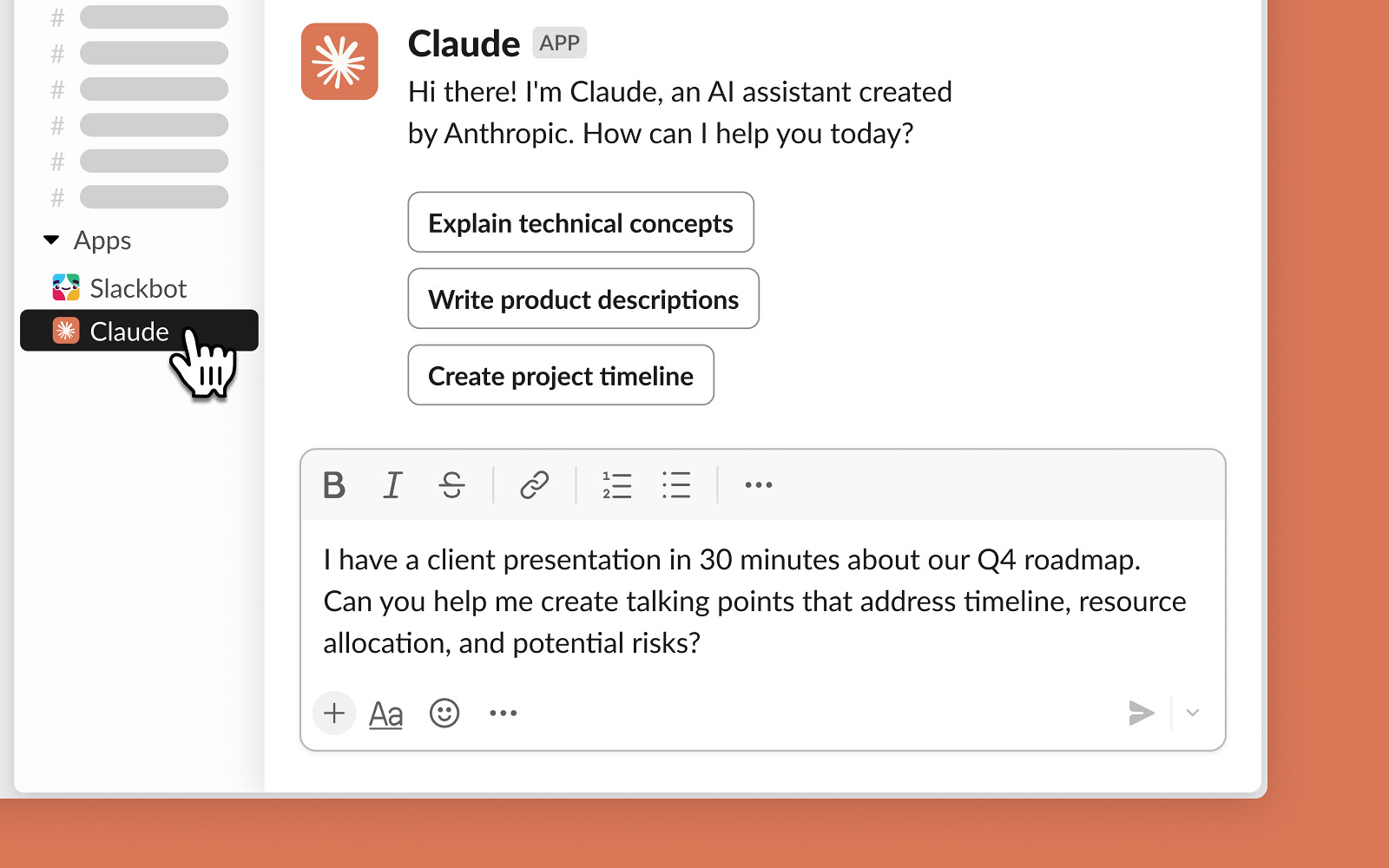
It is also useful when you have been away for a few hours or a few days: “What did I miss in the engineering channel since yesterday, and what affects my current tasks?”
Communication surfaces also matter for support escalations.
You can ask Claude to: “Summarize this customer escalation for engineering. Include the reported issue, affected users, steps already tried, suspected cause, logs or screenshots mentioned, and open questions.”
Many technical decisions happen in conversations before they become formal documentation. Claude helps turn fast-moving conversations into a working context.
Project and Planning Surfaces Before the Code Starts
Planning is where much of a developer’s frustration begins. Most development work starts with a task in Jira, Linear, Asana, monday.com, GitHub Issues, or another project board. In theory, the ticket should explain what needs to be done, why it matters, and how the team will know when the work is complete.
However, tickets are not always perfect. Requirements can be vague, acceptance criteria can be missing, or the ticket may have been written before the design changed. A technical constraint can come up in Slack and never make it back into the task.
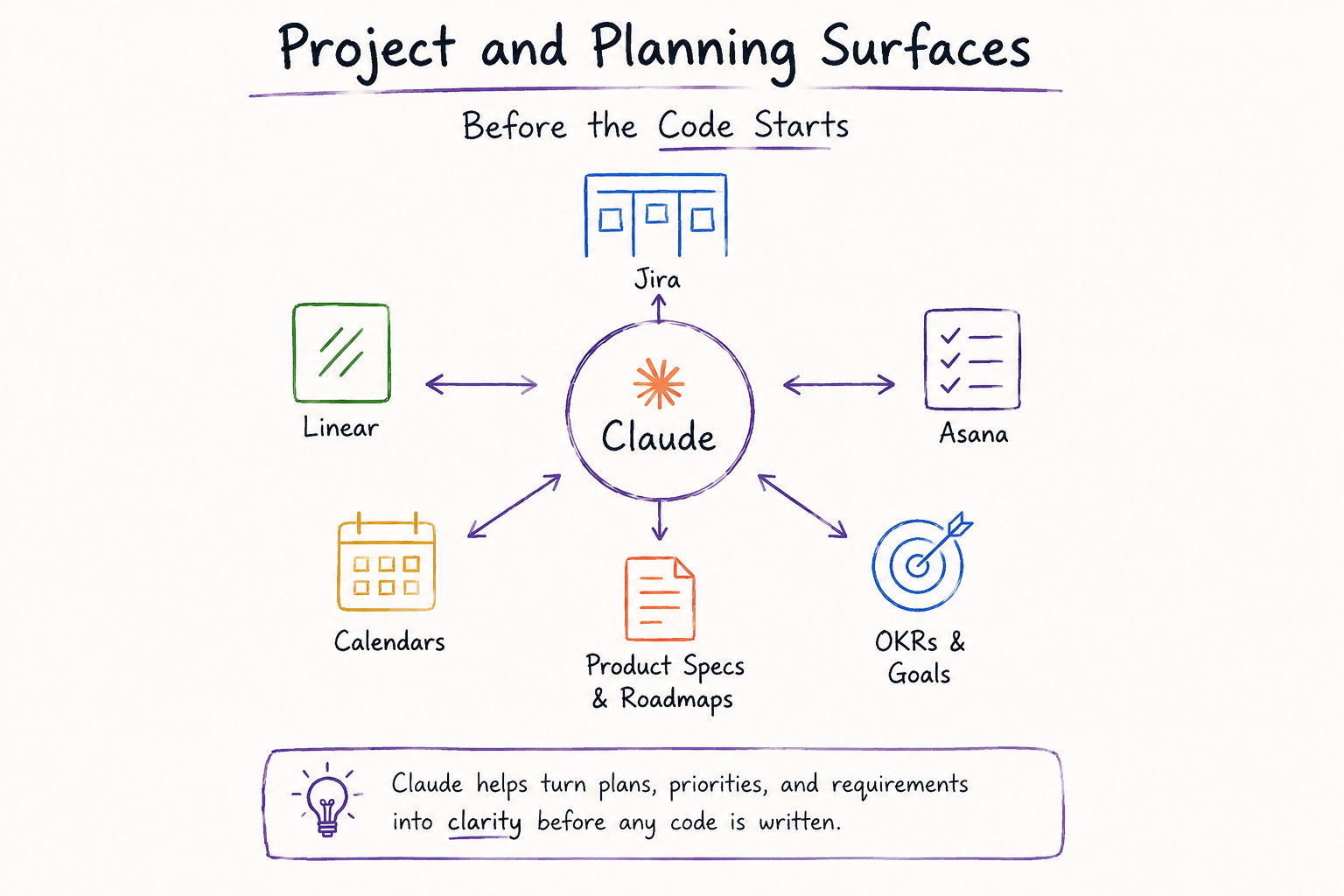
That is where planning tools become more than project management software. They become the starting point for engineering work. Before writing a line of code, you have to turn the task into something actionable by answering the following questions:
What is the real requirement?
Which systems are affected?
What is unclear?
What should be confirmed?
What should be tested?
What could break?
Claude can help by turning a vague task into a clearer implementation plan. For example, you can ask it to review this ticket and turn it into an implementation plan. Identify missing requirements, possible edge cases, affected services, open questions, and suggested test cases.
This is useful because it does not ask Claude to jump straight into generating code. It asks Claude to support the thinking that should happen before the code. It can also help during sprint planning or backlog refinement:
“Review these tickets and group them into ready, unclear, blocked, and needs product clarification. For each unclear ticket, explain what information is missing.”
The value here is that Claude can help you spot ambiguity before it becomes rework. A clearer ticket means fewer assumptions. Fewer assumptions mean fewer surprises, fewer surprises mean less rework after the pull request is already open.
Design and Product Surfaces
Design is another surface where developers often lose more time than they admit. A lot of implementation work starts with a design file, a product spec, a few comments, and a ticket that assumes everything is ready to build. But anyone who has worked on user-facing features knows it rarely plays out that neatly.
The design may show the happy path, but not the empty states. A comment may clearly explain one interaction, but leave another one open. The ticket may point to the design, but still miss some small details that affect how the feature actually works once it is in front of users.
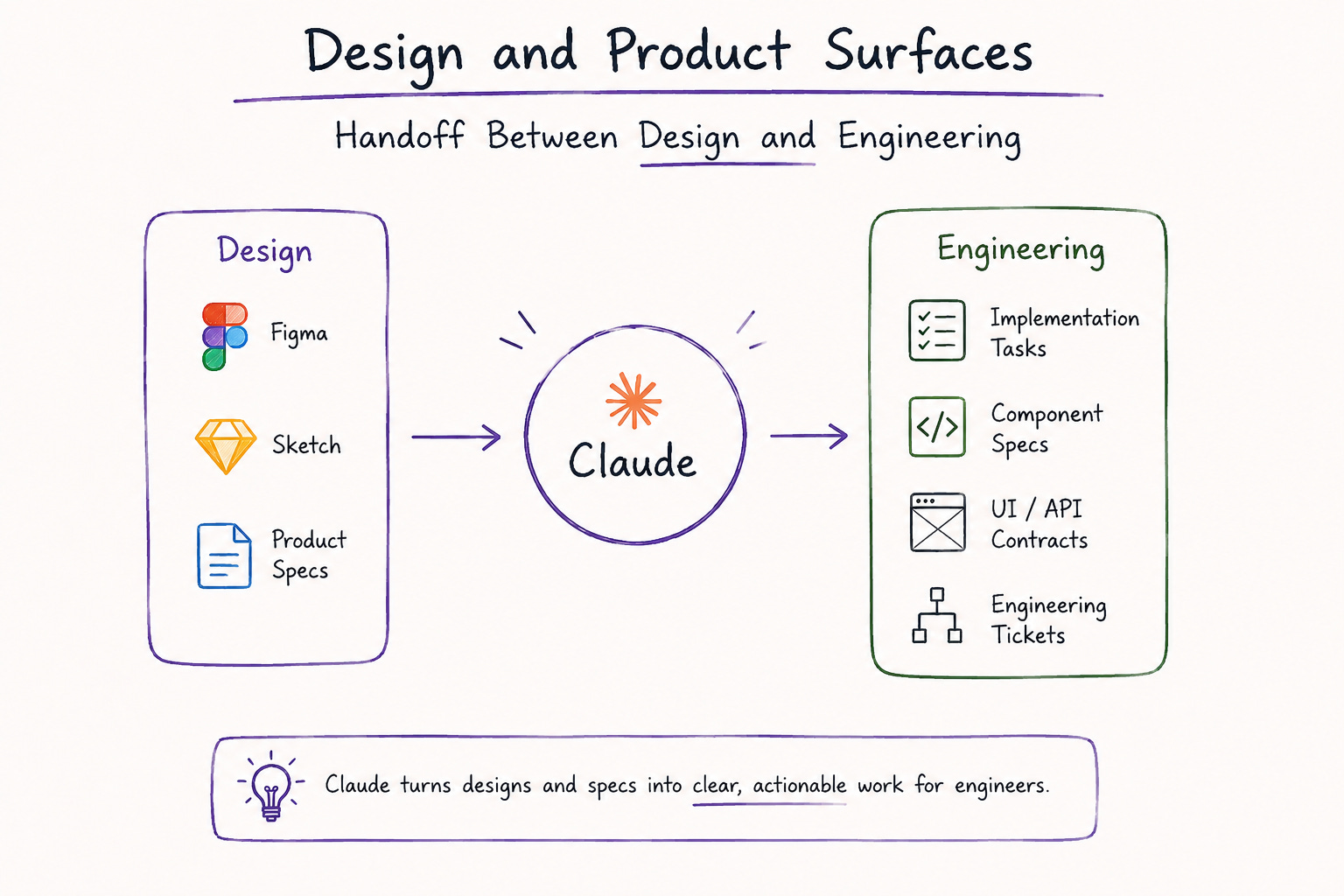
That is where developers start asking practical questions, such as “Which version is final?”, “What states do I need to implement?”, “What happens when the API returns no data?”, “Are there loading, error, and permission states?”, “Does this require backend work, or is it only frontend?”. Claude becomes useful when it can help turn design context into engineering context. A useful prompt might be:
“Review this design update and turn it into frontend implementation tasks. Include required components, UI states, API needs, edge cases, and questions for the designer.”
This also applies to product specs:
“Read this product spec and identify the engineering work required. Break it down into frontend tasks, backend tasks, data requirements, edge cases, and open questions.”
That is the practical value. Claude can help you move from “I have seen the design” to “I understand what needs to be built.” It can also improve collaboration. Instead of going back to the designer with a vague clarification, you can ask sharper questions, such as, “What should happen when the user has no saved payment method?” or “Should this table support sorting and filtering in the first version?”
Claude should not make final product decisions. But it can help you inspect designs more carefully, notice missing states, and turn product intent into a clearer implementation plan.
Microsoft 365 Surfaces: Claude in Office Work
When people talk about developer tools, they usually think of the obvious ones first. Some of the popular ones include the terminal, GitHub, Jira, Slack, Figma, and maybe Notion or Google Drive. But in many companies, much real engineering context still lives in Microsoft 365, Word documents, Excel spreadsheets, PowerPoint decks, Outlook threads, Teams conversations, SharePoint folders, and OneDrive.
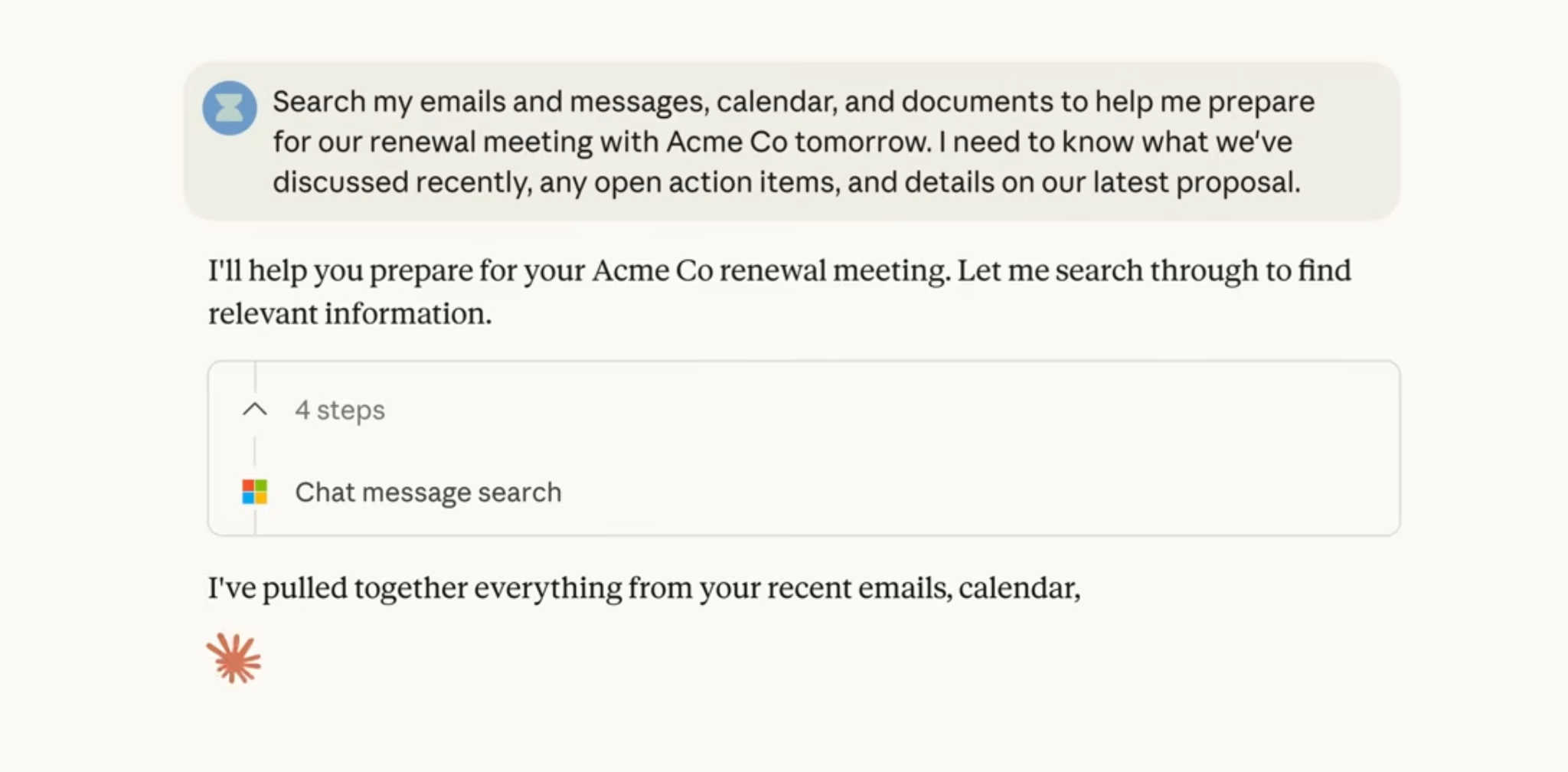
None of these is a coding tool, but they still shape how work gets done. They can change what you build, how you prioritize it, and what details you need to pay attention to. For example, you might get the requirements in a Word document, a bug list in Excel, a roadmap update in a PowerPoint deck, a customer escalation in Outlook, and the project discussion in Teams.
Take Excel, for example. Engineering teams still use spreadsheets for QA reports, support exports, incident counts, migration plans, sprint data, usage reports, and feature request lists. Claude becomes useful when it can turn that data into engineering insight:
“Analyze this bug export, group the issues by root cause, identify the highest-impact categories, and suggest which areas engineering should prioritize next.”
Word is another important surface. Technical specs, RFCs, implementation plans, compliance notes, and customer-facing technical documents often live there. Claude can help review those documents, identify unclear requirements, suggest acceptance criteria, and surface engineering risks.
PowerPoint is also used more usually than we’d estimate. Architecture reviews, incident postmortems, sprint demos, and stakeholder updates often end up in slide decks. They may not feel like engineering artifacts, but they can still contain important context about decisions, risks, timelines, and tradeoffs.
“Turn this incident report into a five-slide postmortem deck with timeline, root cause, impact, fix, and prevention steps.”
Outlook and Teams complete the picture because many decisions still happen in communication threads. Claude can help summarize those conversations into decisions, open questions, and draft engineering follow-ups.
Google Workspace Surfaces: Claude in Docs, Drive, Gmail and Calendar
The same idea applies to Google Workspace.
For many developers and technical teams, daily work runs through Gmail, Google Calendar, Google Drive, and Google Docs. These tools may not look like engineering tools, but they often carry the context that shapes engineering decisions.
A feature may begin as a product note in Google Docs. A customer issue may be explained in a Gmail thread. A meeting decision may live in a calendar invite or follow-up document. A technical proposal may be stored somewhere in Drive. A team may have onboarding notes, architecture diagrams, API specs, and release plans spread across shared folders.
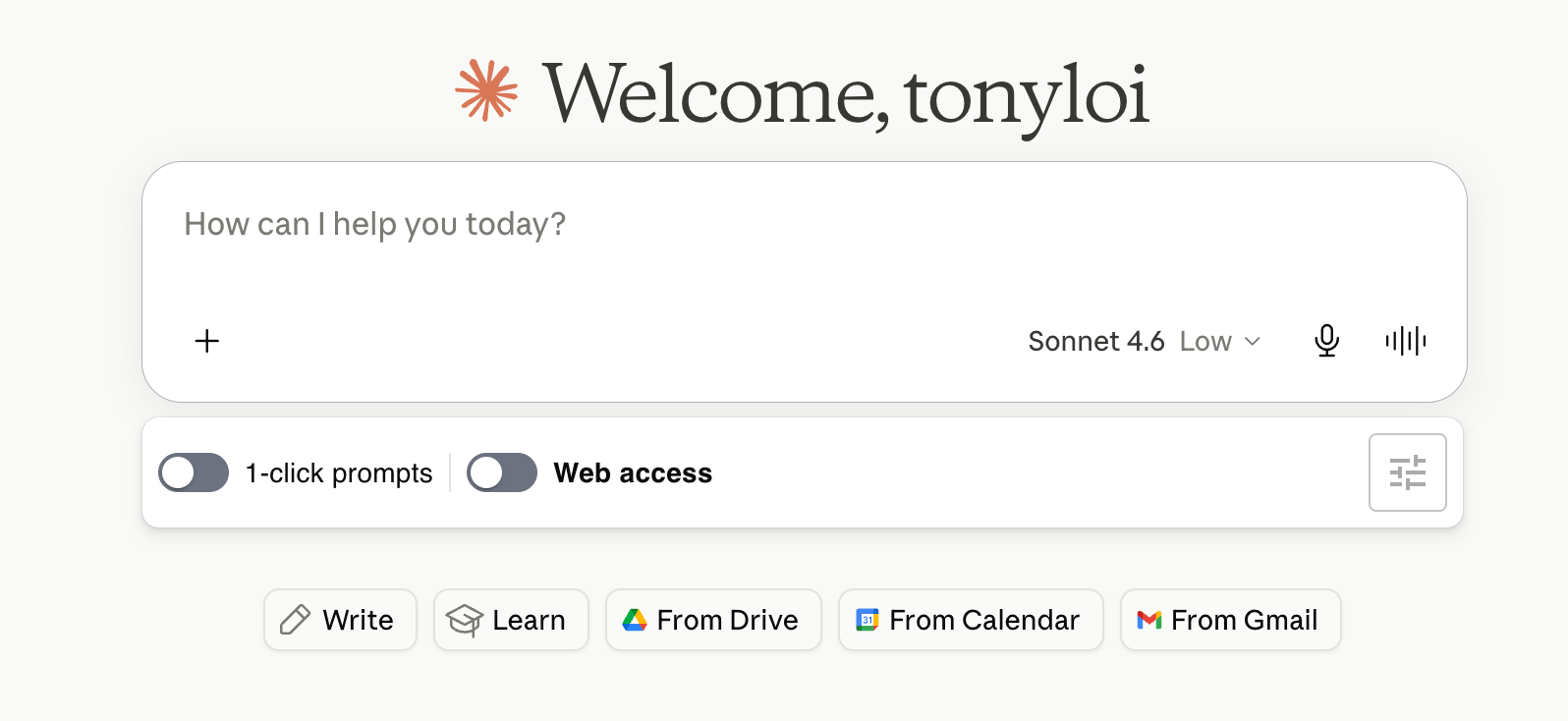
Think about preparing for a technical meeting. Normally, you should check the calendar invite, open the agenda, search for the related document, read previous notes, scan the ticket, and look through a few email threads to remember what the meeting is about.
This is a lot of “small work” before the meeting even starts. When Claude has access to the right workspace context, the process feels less messy. You can move from chasing information across different tools to asking for the pieces you need and getting a clearer starting point. Here is an example of a prompt you can use:
“What should I know before this meeting? Summarize the agenda, related documents, previous notes, open questions, and anything that affects the engineering team.”
Google Drive is another useful surface. Many teams have helpful documents, but the folder structure becomes hard to navigate over time. You may remember that someone wrote a spec, but not the title. You may know there was an architecture note, but not where it was saved.
A useful prompt here can be:
“Find the latest documents related to the billing migration and summarize the current plan, risks, and open questions.”
Gmail and Calendar complete the picture. Customer escalations, stakeholder approvals, security questions, vendor discussions, and meeting follow-ups often live there.
The practical point is simple: Google Workspace is not separate from developer work. It is part of the environment around developer work, and Claude can help connect that context back to the technical tasks developers are responsible for.
Desktop and Local Workflow Surfaces: Claude Closer to the Machine
Another part of this story is Claude moving closer to the actual computer. This matters because not all developer work happens inside cloud tools. Some of it happens locally, in project folders, markdown notes, config files, scripts, screenshots, exported logs, CSV files, API responses, and documents sitting on your machine.
These files are not always neatly stored in a company’s knowledge base. Sometimes they are simply the materials you are working with that day.
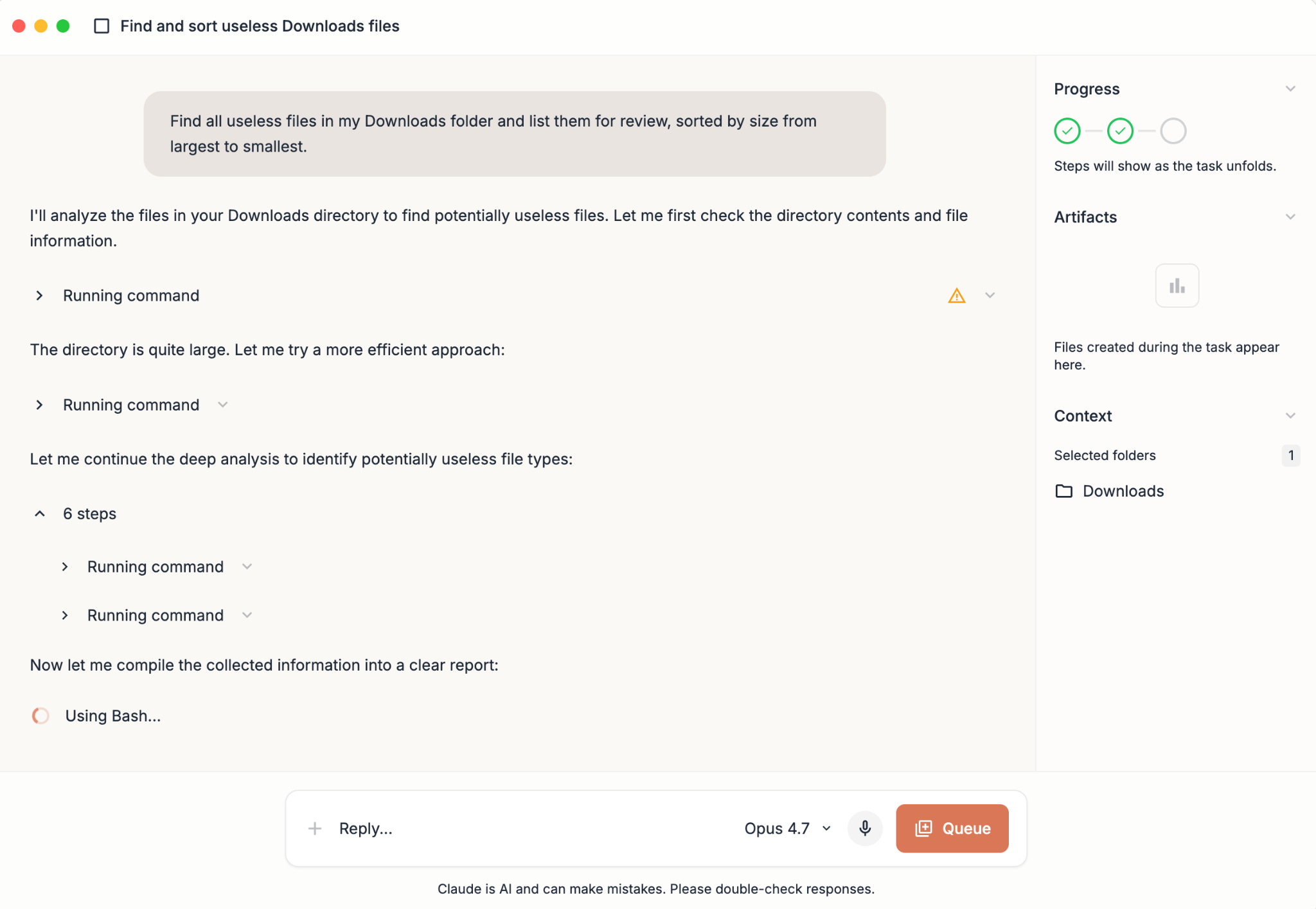
Claude becomes more useful when he can help make sense of those local materials. These are small tasks, but they are practical. Developers constantly inspect, compare, clean, summarize, and reorganize local files before the work becomes official.
This also applies to documentation. You might have a folder of markdown files and want to turn them into an onboarding checklist. You might have debugging notes that need to become a postmortem draft. You might have exported reports that need cleaning before sharing with the team.
A useful prompt could be:
“Read the markdown files in this folder and create a developer onboarding checklist grouped by setup, architecture, testing, deployment, and common issues.”
The key point is that Claude is not only becoming useful in SaaS tools like Slack, GitHub, Google Drive, or Microsoft 365. It is also moving closer to the everyday files and folders developers use on their own machines.
That said, this requires care. Local files may contain secrets, credentials, customer data, private configs, or internal notes. The closer Claude gets to the machine, the more developers need clear boundaries around what it should and should not access.
Browser and Computer-User Surfaces
Another surface worth watching is the browser because not every tool has a clean API. Not every workflow comes with proper integration. A lot of work still happens the old-fashioned way by opening a screen, clicking through buttons, filling out forms, checking dashboards, or using internal admin tools that were clearly built for humans to operate by hand.
This is important because much debugging and testing still happens in the browser. You may need to recreate a broken user flow, compare the UI against the acceptance criteria, check why a form validation message isn’t showing, review console errors, or figure out why the page behaves differently from what the ticket promised.
Normally, you do this manually. You open the app, click through the flow, inspect the page, check the console or network tab, compare the behavior with the requirement, and write down what you found.
Claude moving closer to browser and computer-use workflows changes the shape of that work. A useful prompt might be:
“Walk through this checkout flow and identify where the behavior differs from the acceptance criteria. List possible bugs, missing states, and questions for the product team.”
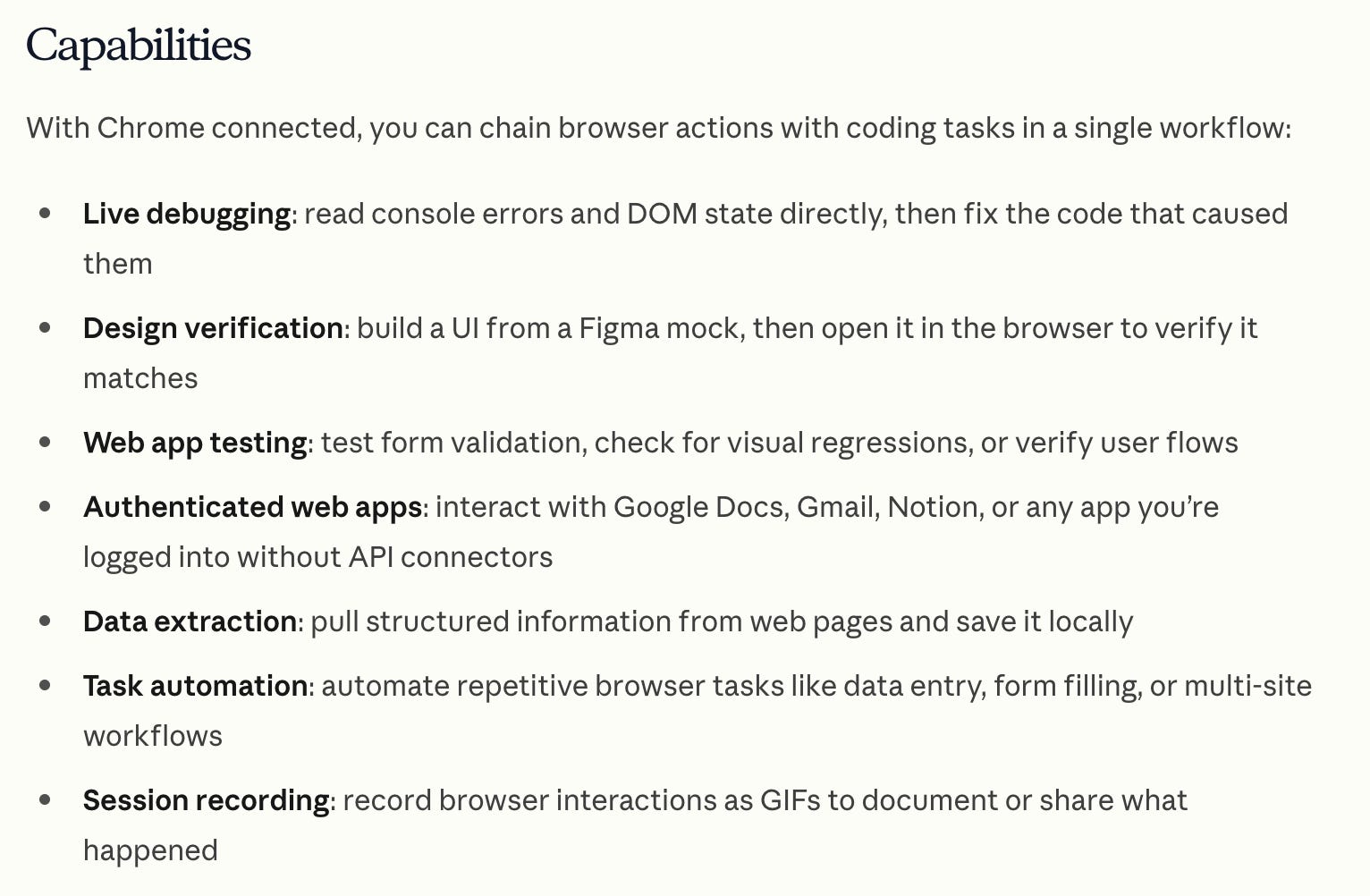
This is different from connecting Claude to an API. It is Claude working with software that is closer to how a user or tester would experience it. It could also help with internal dashboards, admin panels, reporting tools, and support consoles that do not have polished integrations. For example:
“Review this admin dashboard and summarize the account status, recent activity, unusual errors, and anything that might explain the customer issue.”
This is powerful, but it needs to be used with caution. Screen-based workflows can be less reliable than API-based workflows. Claude might misread an interface, misunderstand a button, or suggest an action that should require review.
I would use Claude in the browser mainly for inspection, testing, summarizing, and walking through workflows. But I would still be careful with anything that changes something important. If the action affects production data, permissions, deployments, billing, or customer accounts, a human should review it before it goes through.
Custom Internal Tools
Public integrations are easy to discuss because everyone recognises the tools: Slack, GitHub, Figma, Google Drive, Microsoft 365, Notion, and the rest. They show that Claude is moving into the places where teams communicate, plan, design, document, and ship work.
But the more important developer story is custom internal tools.
Every serious software team eventually builds systems tailored to how the company works. These may include admin dashboards, deployment tools, feature flag systems, incident dashboards, support consoles, analytics platforms, CI/CD pipelines, databases, logging tools, and internal APIs.
These tools are not always polished. Some are old, others are only understood by a handful of people. Other tools have workflows nobody wants to touch unless something breaks. But they often hold the most important operational context.
This is where MCP and tool use start to get interesting. Claude does not have to stay limited to public workplace apps. With the right setup, you can connect it to your internal systems and use it to answer questions with company-specific context, not just generic information. Instead of only asking: “Can Claude summarize this Slack thread?”
You can start asking: “Check the recent deployment history, related incidents, and error logs for this service. What changed before the failure started?”. Other common use cases are pictured below:
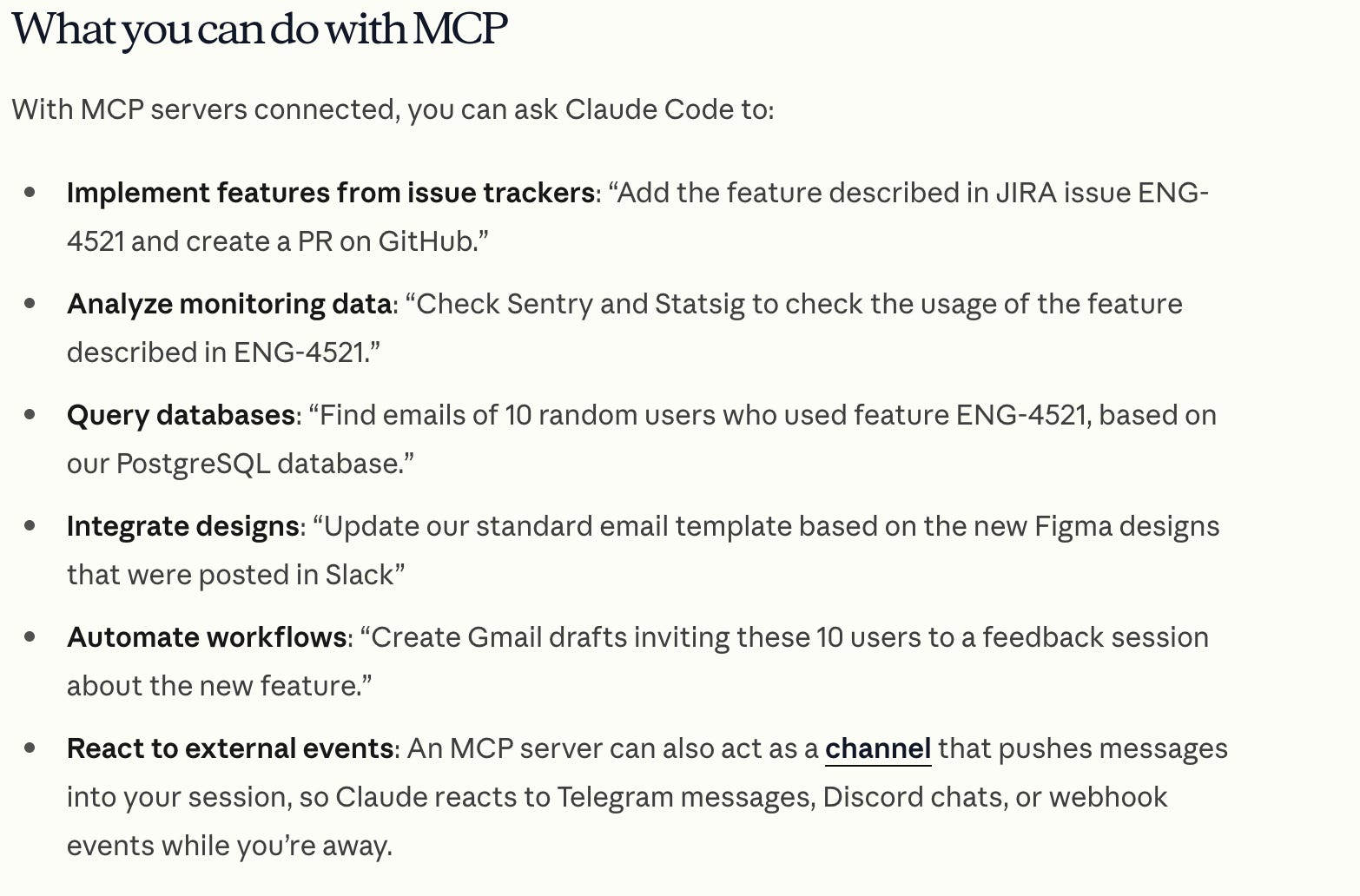
The public tools are the obvious part of the story. Custom internal tools are where the technical opportunity becomes much bigger, because every company has workflows unique to its product, systems, customers, and operations.
From Bug Export to Engineering Priorities
Another practical way to use Claude is to turn bug exports, QA reports, and support data into engineering priorities.
This does not always look like development work, but it directly affects what you end up working on. Bugs may be reported in one system, support tickets may live in another system, QA findings may be exported to a spreadsheet, and customer complaints may appear in email threads. By the time engineering sees the problem, the data is often scattered, repetitive, and hard to interpret.
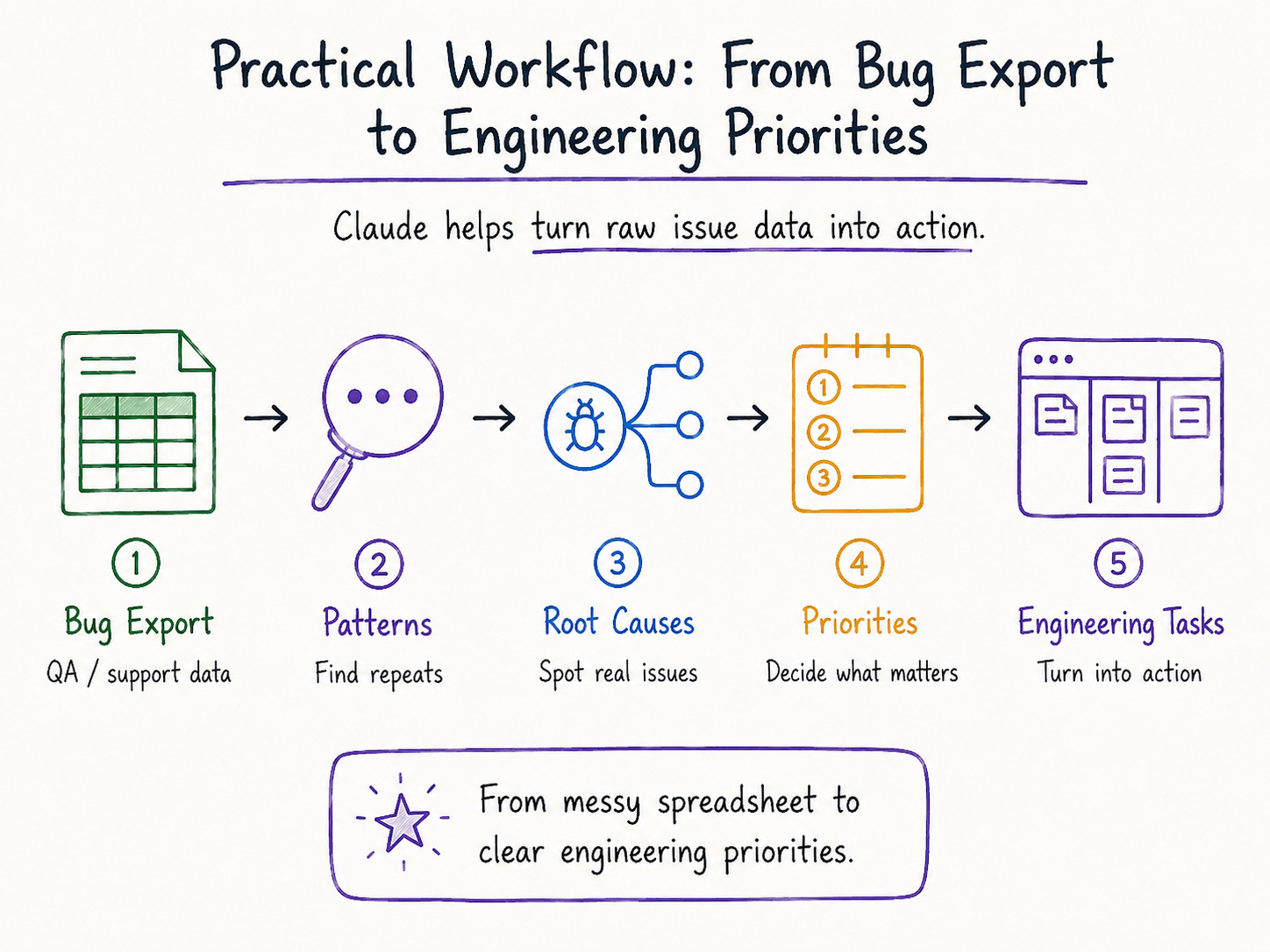
This is where Claude’s movement into spreadsheets and office tools becomes useful. Imagine you have an Excel file or CSV export with hundreds of bug reports. Each row has a title, description, severity, customer impact, product area, status, and notes from QA or support. Manually reading through that file is possible, but it is rarely the best use of a developer’s time.
Here you can prompt Claude to:
“Analyze this bug export and group the issues by product area and likely root cause. Identify repeated patterns, high-impact categories, and the top areas engineering should prioritize next.”
That turns raw issue data into something your team can actually discuss. Instead of saying “We have many bugs”, you can say “Most high-impact issues are coming from checkout validation, account permissions, and failed background jobs.”
Claude can also help separate noise from signal. Some issues may be duplicates, others may be user confusion rather than product bugs. Some may point to missing documentation. Others may need a deeper engineering investigation.
A follow-up prompt might be:
“Identify likely duplicates, issues that may be documentation problems, and issues that require engineering investigation. Explain your reasoning for each group.”
Once the patterns are clear, Claude can help turn the findings into planning material:
“Turn these findings into engineering tasks. Group them by quick fixes, investigation needed, product clarification needed, and larger technical debt.”
Claude is useful not only when work is already in the codebase. It can also help teams decide which problems deserve attention in the first place. And in many teams, that decision starts with a messy spreadsheet.
What You Should Try This Week
The best way to understand this shift is not to read another announcement.
It is to try Claude in one small part of your actual workflow. Do not start with a huge setup. Start with a task you already have. If you have a bug to fix, use Claude Code to inspect the related files, explain the flow, suggest where the issue might be coming from, and propose tests before changing the implementation.
If you have a vague ticket, ask Claude to turn it into an implementation plan. The goal is not to let it decide everything for you. The goal is to surface missing requirements, unclear assumptions, edge cases, and questions you should ask before coding.
If you have a long Slack or Teams thread, ask Claude to summarize the decisions, blockers, owners, and follow-up actions. This is useful when a technical decision was made in conversation but never made it back into the ticket.
If you have a design handoff, ask Claude to turn the design or product spec into engineering tasks, including components, states, API needs, edge cases, and open questions.
If you have a spreadsheet full of bugs or QA findings, ask Claude to group the issues by root cause and suggest what engineering should prioritize.
The point is not to use Claude everywhere at once. The point is to find one place where your work is slowed down by scattered context and test whether Claude can reduce that friction.
Risks You Should Not Ignore
The more Claude moves into daily work, the more useful the tools become. But the risk also increases. When Claude only sees a small code snippet, the risk is limited.
On the other hand, when it can access repositories, documents, Slack threads, spreadsheets, email, dashboards, or internal systems, the stakes change. The question is no longer only whether Claude can help you, it is also what Claude should not be allowed to access and do.
The first risk is sensitive data. That includes PII, customer records, source code, API keys, credentials, private documents, incident details, and internal conversations. None of this should be shared with Claude without clear rules around what is allowed, who can access it, and where the data can go. If Claude is connected to more systems, permissions become one of the main things teams have to get right.
The other risk is bad context. Claude can summarize a document, but if the document is outdated and contains irrelevant information, the output may still be misleading. It can summarize a Slack thread, but if the key decision happened elsewhere, the summary will be incomplete. It can review a ticket, but if the ticket is vague, the implementation plan will inherit that vagueness.
This is why developer judgment still matters. Generated code still needs to be reviewed. Summaries still need to be checked. Implementation plans still need to be questioned. Any action that touches production, customer data, permissions, deployments, billing, or security should have a human in the loop.
The safer way I use Claude is to treat Claude as an accelerator for my work, not the decision-maker.
For me, Claude works best when I use it to gather context, spot patterns, draft, identify risks, and suggest next steps. But I still need to check the output, make the call, and own the decision with my team. Better access only improves the workflow when the team also builds in the right permissions, review steps, and human judgment.
Conclusion
What makes this shift interesting to me is that software work has never lived only in the codebase. The code matters, but a lot happens before anyone writes it. A ticket explains the problem. A Slack thread captures the tradeoff. A design change. A customer reports an issue. QA finds an edge case. Someone decides in a meeting, and later that decision ends up half-documented in a doc, spreadsheet, or comment.
That is the messy part of development. So when Claude moves to tools like GitHub, Slack, Google Workspace, Microsoft 365, Figma, Asana, and internal systems through MCP, the value is not just that they appear in more apps. It can help developers work with the code’s context.
This should not replace terminals, repos, dashboards, docs, tickets, or communication tools. Those tools are still part of the job but the way we move between them may become less painful.
Instead of spending time piecing together what changed, who said what, and what needs attention, developers can start with better context and get to the real work faster. That may be the bigger shift. Claude Code brought AI closer to the codebase. Now, Claude is moving closer to the rest of the developer workday.
That’s a wrap for this edition.
Thanks so much for taking a few minutes to read.
If you liked the post, consider sharing with a friend or community that may enjoy it too.